
Your traffic report may show no visits from ChatGPT at all, while its search crawler keeps requesting your pages. It also works the other way round: the log shows "GPTBot", but the request came from someone else's IP address and has nothing to do with OpenAI. A screenshot of robots.txt or a visit counter won't settle it. You need to check access, the server requests and where they came from, in that order.
Below I go through four bots that are often lumped together as "AI crawlers". For each one, I show what it does, how to find its requests and which conclusions your logs can support. The method works for a site on any CMS, as long as you can get to the server or CDN logs.
What exactly can you check?
The check has several layers. robots.txt shows the published crawling rules. The server log records a request that reached the server. A CDN or WAF log can show a request that was stopped earlier. The IP address tells you whether the request really belongs to the service it claims. The status code and the page content show what the bot received. None of these signals on its own proves that the page was used in an AI answer.
Say you are checking a service page. robots.txt doesn't disallow OAI-SearchBot. That only means crawling is allowed by your published policy. If the logs show no request in the period you picked, you can't claim the search crawler has seen the page. If there is a request but the server answered 403, the bot didn't get the content. Even a confirmed 200 only means the bot got access; it doesn't promise a future link in ChatGPT.
Pin down the exact URL, host and period before you start. Otherwise it is easy to compare the rule for www.example.com with the log for example.com, or to take a visit to the homepage as a check of the article you care about.
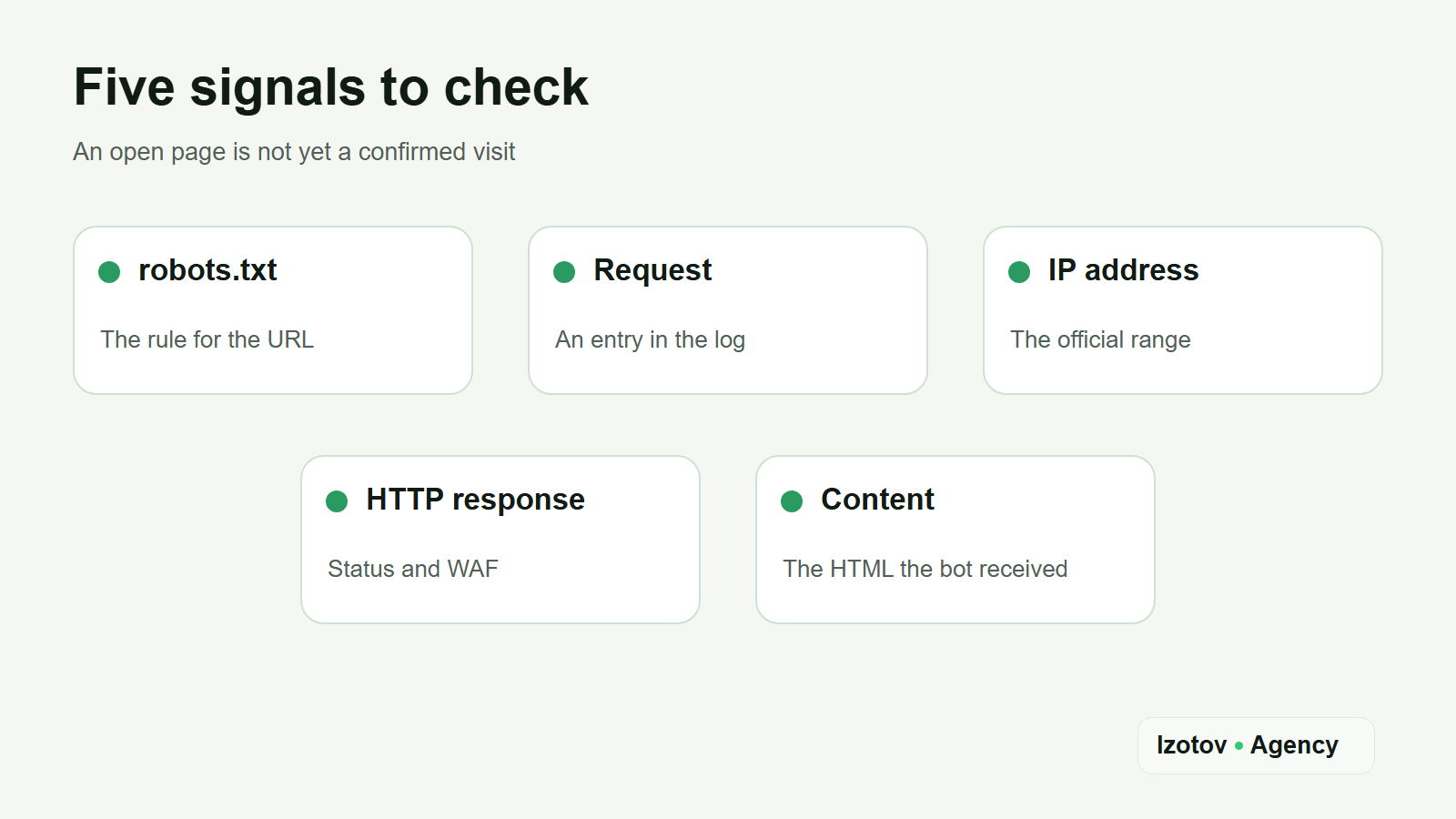
Figure 1. An open page is not yet a confirmed visit: five signals to check
How do the four bots differ?
Similar names hide different jobs. GPTBot is especially easy to confuse with ChatGPT's search crawler, and ClaudeBot with Claude's search.
| Bot | Why it requests your site | What checking it tells you |
|---|---|---|
| GPTBot | OpenAI collects content that may be used to train its future models. | Whether your training-crawl policy works; a visit alone does not mean a link in ChatGPT. |
| OAI-SearchBot | OpenAI uses it to surface websites in ChatGPT's search features. | Whether your pages are reachable for ChatGPT search. |
| ClaudeBot | Anthropic collects content that may be used to develop Claude's models. | Whether your policy for Anthropic's training crawl works. |
| PerplexityBot | Perplexity crawls pages to surface and link sources in its search results; the company states that this bot does not collect content for training foundation models. | Whether your pages are reachable for Perplexity search. |
There are other agents too. ChatGPT-User, Claude-User and Perplexity-User can open a page after a user asks for it. At Anthropic, search is handled by a separate bot, Claude-SearchBot. Don't count their visits in the statistics for the four bots in the title: they are different events with different access settings.
Many English-language robots.txt files also name Google-Extended and Applebot-Extended. These are not crawlers, so don't look for them in your logs. Google-Extended has no user agent of its own: Google crawls with its usual user agents, and the token only decides whether that content may be used to train Gemini models and to ground their answers. It doesn't affect inclusion or ranking in Google Search. Applebot-Extended doesn't crawl pages either: it opts your content out of training Apple's foundation models, and pages that disallow it can still appear in Apple's search results.
OpenAI says that if you allow both GPTBot and OAI-SearchBot, it may use the results of one crawl for both jobs to avoid crawling your site twice. So a missing GPTBot line in the log doesn't prove that your content never went into training. Check the current policy for both agents and the bot owner's documentation: one name in the log can't settle this.
Step 1. Check robots.txt
Open https://your-domain/robots.txt on the exact host that serves the page you are checking. If the site works both with and without www, check the redirect and the final host. Then look for groups with the exact names GPTBot, OAI-SearchBot, ClaudeBot and PerplexityBot, the general User-agent: * group and the rules for the path you care about. Read the whole file: a rule for a specific agent and the general rule can lead to different results.
If you want to keep ChatGPT search open but opt out of OpenAI's training crawl, the minimal example looks like this:
1User-agent: GPTBot2Disallow: /3 4User-agent: OAI-SearchBot5Allow: /
This is an example policy for a public site. Don't paste it over your robots.txt as is: first check your other groups and the rules for private sections. At Anthropic, the decision about ClaudeBot is made separately from Claude-SearchBot. PerplexityBot is also configured separately from the user-triggered Perplexity-User.
robots.txt tells a well-behaved bot which paths not to crawl. It doesn't protect an account area, documents shared by a private link or other confidential content. Those need access control on the server. And if you have just changed the file, don't expect search to change at once: OpenAI and Perplexity both say that updated rules can take about 24 hours to apply.
Step 2. Find the requests in your logs
Ask your administrator for the web server's access log for the period you need, or open the request log in your CDN dashboard. At a minimum you need the time, source IP, host, method, path, User-Agent string and HTTP status. The final status after redirects and a flag showing whether a WAF rule fired are useful too. Field names differ between hosts and dashboards, but the check is the same.
Search for the exact names of the four agents without tying them to a version number. For example, GPTBot/1.4 and any later version should land in one GPTBot group. Look separately at requests for /robots.txt and then for the URL you are checking: a bot may read the rules first without requesting the page. Entries for ChatGPT-User don't stand in for entries for OAI-SearchBot.
Here is a made-up example of a log line. The IP 192.0.2.24 is used for illustration only and doesn't belong to the bot named in it:
12026-09-24T10:15:03Z 192.0.2.24 GET /blog/example 403 "OAI-SearchBot/1.4"This line says that a request with this User-Agent string reached the logging point and got a 403. It doesn't yet prove the request came from OpenAI, and it doesn't show why access was denied. The next step is to check the IP and your protection rules.
If the log is empty, first check whether you are seeing everything. Is logging on for that host? Does the dashboard keep data for the dates you picked? Is the CDN stopping requests before they reach the server? Does a reverse proxy overwrite the source IP and leave only its own address in the access log? In that case you need the CDN logs or correctly configured forwarding of the client IP. Zero results in an incomplete log don't prove there were no visits.
If your site sits behind Cloudflare, requests it blocked never reach your server. They show up in Security Events in the Cloudflare dashboard, with the IP address, user agent, path and the action taken. On the Free and Pro plans, Security Events keep only 24 hours of data, so check or export them the same day you test.
Regular web analytics can't replace server logs here. The analytics script runs in the browser on the page, and a crawler can fetch the HTML without running it. Analytics is useful for human visits from AI assistants, but the question "did OAI-SearchBot come?" is answered at the level of HTTP requests. If you use Microsoft Clarity, its Bot Activity dashboard is an exception: it reads server-side logs from a connected CDN or server.
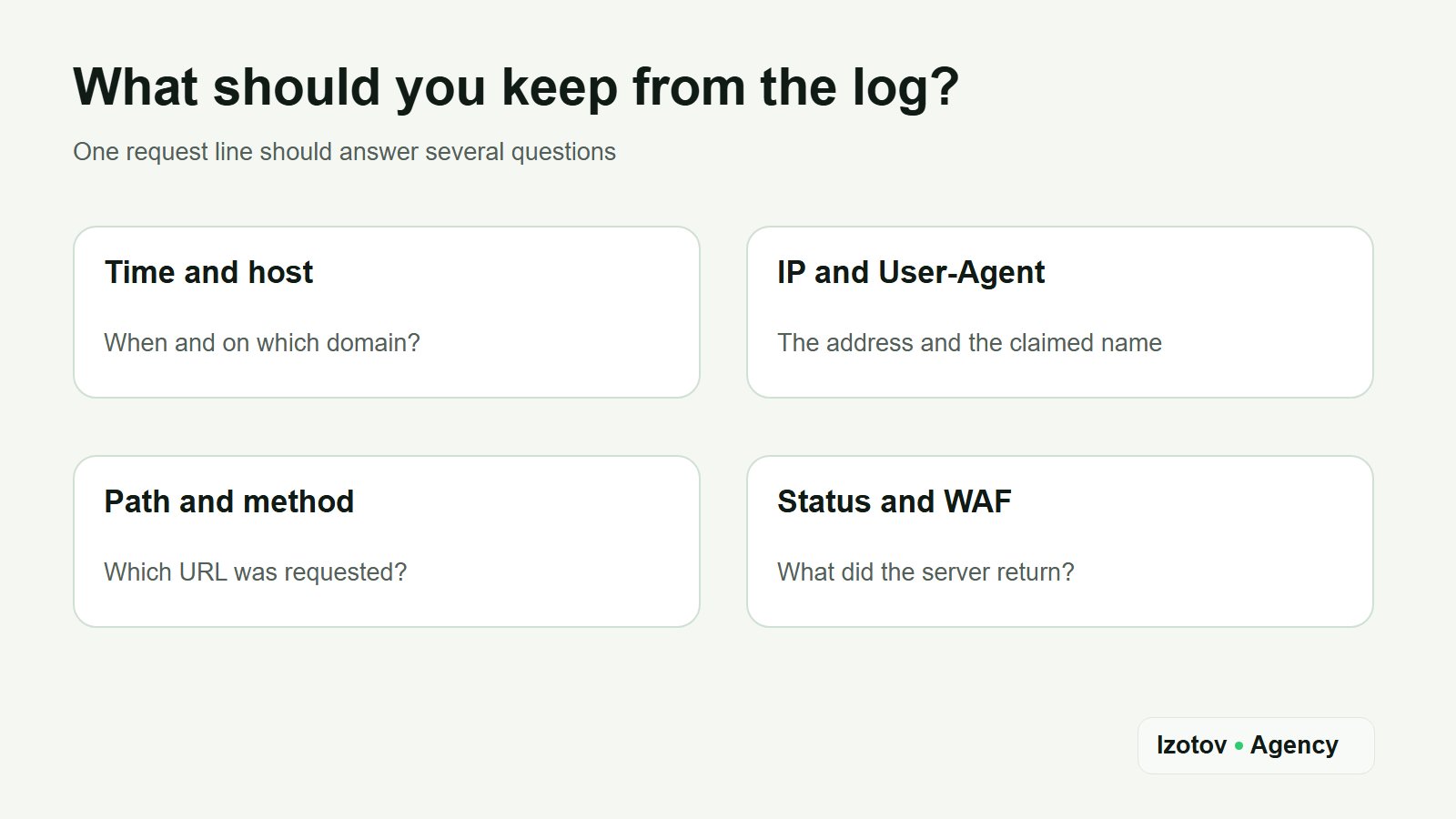
Figure 2. One request line should answer several questions
Step 3. Confirm the bot's IP address
Anyone can put GPTBot or PerplexityBot in the User-Agent header. To confirm a request is genuine, match the source IP from the log against the ranges published by the bot's owner. Don't look for a single address from an old article: the lists get updated, and an address is usually checked for membership in a CIDR range, such as a network with a /28 mask.
OpenAI publishes separate JSON lists for GPTBot and OAI-SearchBot. Anthropic provides a list of its bots' addresses. Perplexity publishes a list for PerplexityBot. In each case, check the current version at the official link and whether the IP falls inside one of the listed prefixes. For Anthropic, an address from the shared list confirms the company's infrastructure, and the specific agent is identified by the User-Agent.
Behind a CDN there is one more catch: in the server log, the source IP may sit in a separate trusted field, while the main address belongs to the proxy. Don't take an arbitrary header such as X-Forwarded-For from a public request as proof. Your administrator should confirm which fields your trusted infrastructure fills in and how the sender's address is restored.
If the User-Agent matches but the IP is not in the published range, mark the entry as unconfirmed. If the IP matches but the log didn't keep the User-Agent, you can confirm whose infrastructure it was, but you can't attribute the request to a specific bot without another signal. Note the date you checked the lists: a month later they may be different.
Step 4. Check the response status and the WAF
Once the address is confirmed, look at what the bot got. A 200 for the right URL means the page was served at that observation point. A 301 or 302 means following the redirect chain and checking the final address. A 404 means the page doesn't exist at the requested path. A 403 means access was denied, and a 429 often points to rate limiting. 5xx errors mean a failure on the server or in the infrastructure in between. Besides the code, record the time, the protection rule that fired and any retries.
Compare the server log with the CDN and WAF log. A rule based on country, IP, request rate or behavior can stop a request before it reaches your origin server. Then robots.txt looks open while the server's access log is empty. Perplexity specifically advises checking your WAF settings and, where needed, combining User-Agent matching with its official IP ranges.
What changed on Cloudflare in September 2026?
More than 20% of web domains sit behind Cloudflare, by its own count, and on those sites its AI bot settings decide whether a crawler gets the page or is blocked. Since July 2026, every plan, including Free, has AI bot policies in Security Settings, split by what a bot does: Search (indexing content to answer questions later), Agent (acting in real time on a person's behalf, like the chat fetch requests ChatGPT-User, Claude-User and Perplexity-User make) and Training (taking content to train or fine-tune a model). Each category can be allowed, blocked on pages that show ads, or blocked site-wide.
Two changes took effect on September 15, 2026. New domains that join Cloudflare now block Training and Agent traffic by default on pages that display ads, while Search stays allowed. And crawlers that combine search with training are judged by their most restrictive behavior: Cloudflare names Googlebot, Applebot and Bingbot, which are now blocked on sites that chose to block Training, including through the older Block AI bots toggle, unless the owner opted out before that date.
So if you turned on Block AI bots last year to keep GPTBot out, open Security Settings and check your AI bot policies now: the same choice can block Googlebot and Bingbot today. If Cloudflare's managed robots.txt is on, it also adds a line such as Content-Signal: search=yes,ai-train=no to your file. The line only states your preference; the policies in Security Settings do the blocking.
Don't judge whether the real bot can get in from a request sent from your own computer with a spoofed User-Agent. That test shows simple filtering by name, but it doesn't reproduce the source IP, the address reputation or rules for data center traffic. If you fixed the WAF and no new confirmed visit has happened yet, record the change and keep watching, without marking the problem as solved in hindsight.
Sometimes the server returns a 200, but the important text only appears after JavaScript runs. For a technical audit, open the raw HTML of the response and check that the title, the main text and the links are in it. A 200 status alone doesn't guarantee that the bot received the actual content.
How do you read the results?
It helps to record the conclusion separately for each bot and URL. Then your report won't contain a vague "AI is crawling the site", which can hide completely different states.
| What you see | What you can conclude | Next step |
|---|---|---|
| No requests in the available logs | No visit was recorded in the period; if logging is incomplete, the conclusion is limited. | Check the CDN logs, the host, the period and whether logs were kept. |
| The right User-Agent, IP not confirmed | The source of the request is unknown. | Match the source IP against the current official list. |
| IP and agent confirmed, response 403 or 429 | The bot came, but access to the page was restricted. | Find the WAF or server rule and watch again after the fix. |
| IP and agent confirmed, response 200 | At that moment the server served the page. | Check the HTML content, and measure separately whether the page appears in the service's answers. |
For regular monitoring, it is enough to keep the date, bot, URL, IP confirmation, status and the reason for any block. That table already shows what changed after you edited robots.txt or the WAF. Track links and mentions in AI answers separately: that is a different metric, and I measure it every month with one method as part of AI visibility monitoring.
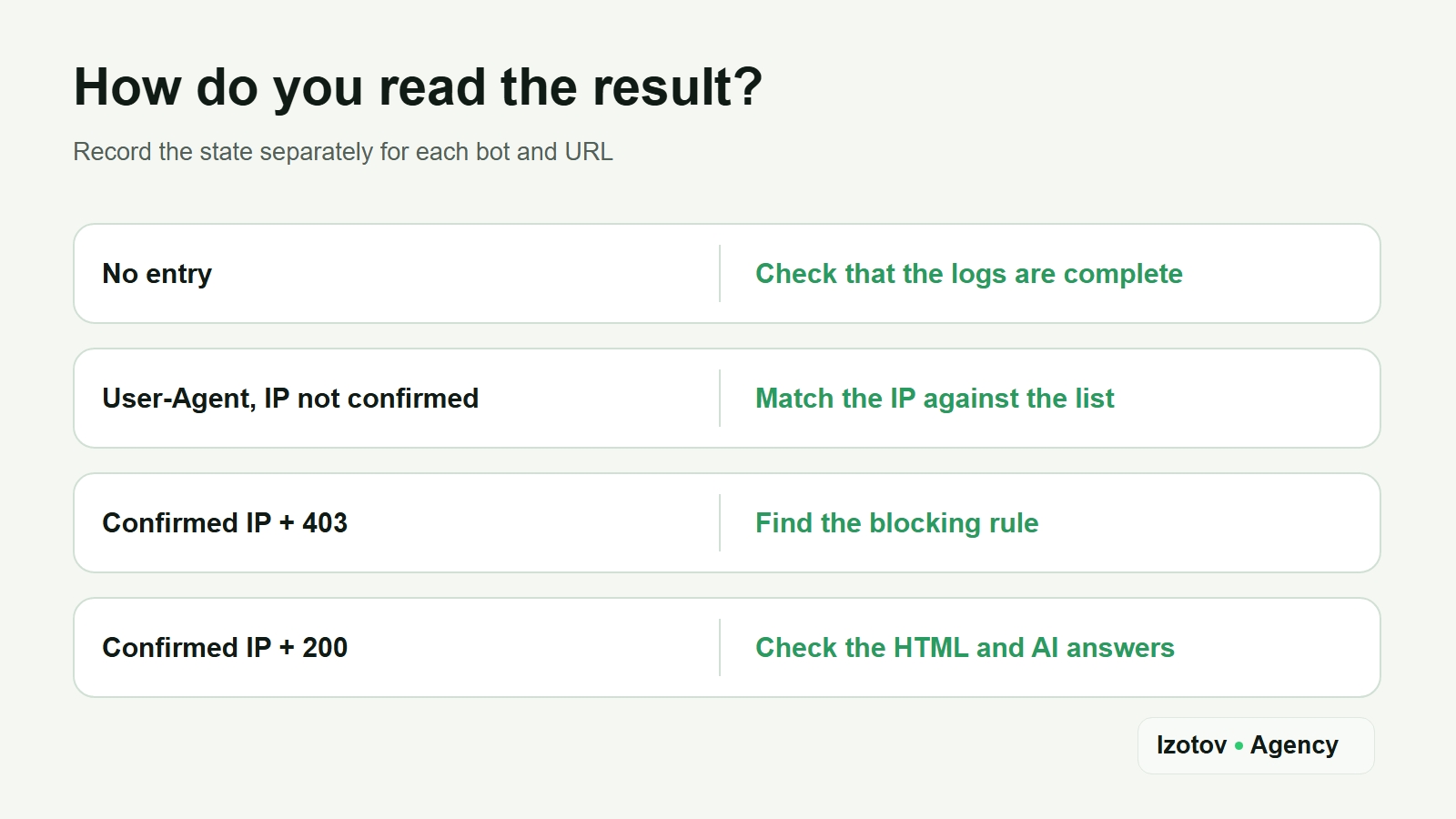
Figure 3. Record the state separately for each bot and URL
Frequently asked questions
Can you block GPTBot and keep OAI-SearchBot?
Yes. OpenAI describes the settings for these bots as independent: blocking GPTBot concerns the training crawl, while OAI-SearchBot is responsible for search in ChatGPT. Still check robots.txt and network access for the search bot. Allowing it doesn't guarantee that a specific page will appear in an answer.
Why is there no GPTBot in the logs if the site is open?
A missing line can mean the bot didn't visit in the period you can see, the request stayed in the CDN log, or part of the logs wasn't kept. OpenAI also says it may use the result of one crawl for both jobs if both bots are allowed. Don't turn a missing entry into a firm claim about how your content was used.
Should you check ClaudeBot and Claude-SearchBot together?
Check both, but count them separately. ClaudeBot collects content that may be used to develop models. Claude-SearchBot serves search in Claude. Blocking the first doesn't block the second. If your goal is to be reachable for Claude's search, focus on the rules for Claude-SearchBot and its actual requests.
Does blocking Google-Extended keep you out of AI Overviews?
No. Google-Extended controls Gemini training and grounding in Google's other systems and doesn't affect inclusion in Google Search. AI Overviews and AI Mode are part of Search. To limit what Google shows from your pages there, Google points to its regular preview controls: nosnippet, data-nosnippet, max-snippet and noindex.
Is an llms.txt file enough to let AI crawlers in?
No. Having an llms.txt file doesn't replace accessible HTML, correct server responses, robots.txt and WAF settings. For the bots covered here, the official ways to control crawling go through their user agents and robots.txt. Confirming a visit still takes logs and a verified source for the request.
What should you do after the check?
First fix the specific cause: a wrong path, the wrong group in robots.txt, a CDN or WAF block, a server failure, or a page whose HTML lacks the main content. After the change, check the rules again and wait for a new confirmed request. Record the result for each bot separately: GPTBot and ClaudeBot do one job, OAI-SearchBot and PerplexityBot another.
If access breaks at several layers and it isn't clear where, book technical GEO with Izotov Agency. I'll check robots.txt, AI crawler access, server responses, CDN and WAF restrictions and whether the page content is available without JavaScript, then give you a plan of fixes. This removes the technical obstacles; whether a page gets shown and cited is still up to the AI services themselves.
Sources
- Overview of OpenAI Crawlers, OpenAI.
- Does Anthropic crawl data from the web, and how can site owners block the crawler?, Claude Help Center.
- Perplexity Crawlers, Perplexity.
- Bot Activity overview, Microsoft Clarity documentation.
- Google's common crawlers: Google-Extended, Google Search Central.
- AI features and your website, Google Search Central.
- About Applebot, Apple Support.
- Your site, your rules: new AI traffic options for all customers, Cloudflare Blog, July 2026.
- Block AI bots, Cloudflare documentation.
- Security Events, Cloudflare documentation.